

Thursday, February 24, 2011

Wednesday, May 12, 2010
Pad Frenzy – The next step in Mobile Computing?
As the deadlines pass for the WIFI and 3G models of the iPad and the frenzy over these devices continues to mount, one begins to wonder what all the fuss is about. Is the iPad the beginning of a new wave of mobile computing or just a fad? To answer this question, one needs to look at the mobile computing market as a whole.
Currently, netbooks are peaking in the market at about 7% market share. Market analysts believe that the netbook market will level off at this point and will continue to do well. This is a signal of its limited abilities and it’s specific design purpose. I recently purchased a netbook for my wife and she loves it as it is lightweight and portable and makes surfing the web anywhere in the house relatively easy. The drawback to netbooks is that these tasks are about the only thing they are good for. They cannot handle more complex or strenuous programs to run effectively.
Laptops still make up the largest part of the market in terms of mobile computers and also have the widest variety of models, types, and specifications. Laptops provide interested users with a wide variety of price ranges and capabilities. The most volatile part of the laptop market lies in the price range of $500-$900, having a wide variety of capabilities. Still the laptop’s primary drawback is its portability in relationship to other mobile devices. It does serve a purpose in that it can perform a great number of complex tasks and is able to handle most software needs depending on the system configuration, however this power is also the reason for the aforementioned drawback. This leads us to a new segment of mobile technology introduced by Apple.
It’s been called a tablet, slate, pad, and a number of other terms as the new market has developed. For the sake of simplicity, we will refer to touch-screen computers such as the iPad tablets. Apple has long been known to operate at the forefront of technology when it comes to innovation and the creation of new markets. With over a million iPads sold in a little under a month, it seems Apple may have hit gold again and with it, a whole new emergence of a market segment that was previously nonexistent. The tablet PC defies the common thought that people will gravitate towards faster, smaller computers. While the processors are smaller, they are not faster than most laptops. So what makes them so popular? Tablets are configured to deal primarily with media (audio and video) which is increasingly becoming portable. This is because your favorite movies, games, books, audio, and other forms of media are all going digital. Therefore, it only makes sense that people would want a device which brings these digital media formats to their fingertips.
So, once again, we are brought back to the age-old question. Which one should I get? The response remains the same, it always depends on your own personal needs. If you are looking for portable entertainment, you should go with a slate device. If you are looking for a portable workhorse, you should look to a laptop. The iPad is the next step in mobile computing as can be seen by its tremendous sales. While this is the case, I strongly recommend that you wait to purchase new technology for at least 6 months while they works the bugs out and competition can bring more devices to the market.
Monday, May 3, 2010
Looking for a Class?
As I have taught a number of students and thus spoken to a number of parents, it has become apparent that there is an informational gap that needs to be remedied. There seems to be an overwhelming number of people who lack some of the fundamental knowledge we as a younger generation take for granted on a regular basis. Therefore, I have begun to design courses to parents of my students who want to learn more about computers and software. The first series of courses I will start this summer begin on the first of June and run through the end of the month. The course will cover Microsoft Word, Excel, and PowerPoint (2007, the new version of office). The class meets on Tuesdays and Thursdays from 6:00-8:00 PM at BT. The cost for the course is $100 and the only requirement is that you have a laptop. If you are interested in this course and would like more information, please email me at coachhollers@gmail.com. Thank You for your interest. I hope these courses will be beneficial for those interested.
Monday, March 15, 2010
Sexting, What is it and What can I do about it?
What is it?
“Sexting(a portmanteau of sex and texting) is the act of sending sexually explicit messages or photos electronically, primarily between mobile phones.(Wikipedia)”
Why should I be concerned?
First, from a legal standpoint, the fact that sexting can lead to jail time as the sending of sexually explicit pictures of minors is considered child pornography and is a felony.
Second, sexting is becoming more prominent and at even younger ages. The National Campaign to Prevent Teen and Unplanned Pregnancy conducted a study on the prevalence of sexting in teenagers. 39% of teens admitted to sending sexually explicit texts or images to boyfriends or girlfriends. Another 48% admit that they have received at some point in time such messages. Therefore, in all likelihood, in a class of 20 students, nearly half of them have sent or received a sexually suggestive message. That is your son or daughter!
Third, sexting rarely leads to positive outcomes. Teenagers in general are adapting and adjusting to a new world both in society and with their own bodies. The implications that suggestive messages or photos have can be devastating if handled inappropriately. Consider a situation: An eight grader at a middle school sends a nude photo of herself to her boyfriend (A freshman in high school). They then break up, and to get revenge, the boyfriend sends the image to a bunch of his friends. This picture continues to circulate the school. Don’t think it could happen? It just did at a private school in Atlanta
Why am I discussing this?
As a technology teacher, it is amazing to see the advance of technology that we have had in recent years. There are a number of positive outcomes involved in the advance of technology, but it is a double-edged sword. Like eating the fruit of the tree of knowledge of good and evil, we have opened ourselves to both tremendous goods and terrible evils.
Sexting is one of those evils that we don’t like to discuss and want to assume that our students are not involved in, however, it is obvious that it cannot be pushed under the rug any longer. Everyone must be confronted with the truth of how this perversion in the use of technology can cause harm to all involved.
How Can Parents Mitigate the Risk of Sexting?
First, be the unpopular one. While the steps I am about to outline are effective, they are not popular. Your student may be upset with you or consider you to be irrational. Just keep in mind the alternative is exploitation and jail time.
Second, ditch the data. Contact your phone provider and tell them you wish to block all MULTIMEDIA MESSAGING to and from your student’s phone. This will protect them against the felony issue of child pornography. They will still be able to text, though which means they could still participate in sending suggestive text messages. The next step will help alleviate this problem.
Third, check and recheck. On a regular basis and at random times check your student’s phone. Make sure your student hands it over immediately, so they cannot delete anything that is on it (this is why the random times is important also, so they do not expect you to check and therefore do not delete messages). Make it known with your student that this is a policy and expectation that you will enforce. If they don’t like it, then take the phone. As a side note, a number of cell phone services also provide monitoring of phone calls and messages sent to and from a phone for a nominal fee. The fee for AT&T is $9.99 a month and you can see not only who they are sending and receiving messages from, but you can also see the content of the messages. This is invaluable and should be something you add on to your plan if your phone provider offers it. How do you know if they do or not? Simply call your provider and ask them if they offer such a program. This allows you to discreetly check what your student is doing without them knowing and without their ability to cover their tracks.
Finally, knowledge is power. Equip your student with the understanding of the pitfalls of such actions and set down guidelines for what they should do if such a text or message is ever sent or received. This way the student has defined boundaries in which to operate and will be thankful to you for setting the parameters (even if they don’t say so).
Technology can be a blessing or a curse depending on what its use becomes, make sure that your child’s technology is the former and not the latter.
For more information, see the links below:
Resources
"Sex and Tech | The National Campaign." The National Campaign to Prevent Teen and Unplanned Pregnancy. CosmoGirl.com, n.d. Web. 12 Mar. 2010. .
"Sexting - Wikipedia, the free encyclopedia." Wikipedia, the free encyclopedia. N.p., n.d. Web. 12 Mar. 2010. .
WSB Radio. "Lovett 'Sexting' Scandal - WSB News on wsbradio.com." News/Talk 750 WSB on wsbradio.com. Chris Camp, 4 Mar. 2010. Web. 12 Mar. 2010. .
Thursday, March 4, 2010
The Apple Dilemma
I am not among the first to think that Apple has revolutionized the way that we think about mobile computing and devices. The iPhone and iPod are both revolutionary devices which have not only created their own massive market segments, but have also carved out a permanent niche for Apple in portable electronics. This being said, recently Apple unveiled it's latest creation, the iPad. At first blush, the iPad seems intreseting, seamless in it's integration and another wonderful device from Apple. However, upon closer observation, this illusion is simply that, merely smoke and mirrors. So why is the iPad leaving so many people (including dedicated Apple consumers) in the lurch?

First, in a struggling economy, price is is essential to marketing a new product. At $500 for the lowest level iPad (with very little storage and no 3G), this product is placed well above comparable netbook computers.
Secondly, with a device that supposedly is revolutionizing mobile computing, it would seem that functionality would be key to Apple's strategy in such an emerging market. The idea of a tablet computer with the processing power of a netbook is a great idea and could provide a solid source of future revenue, however, most netbooks run a complete operating system (Windows 7 starter or Windows XP). The iPad simply uses the same operating system that the iPod Touch employs with a few minor modifications. Therefore, you still have difficulty in installing productivity software such as Microsoft Office, as well as browsers such as Firefox and other useful programs that may not be included in the app store. This is neither functional nor practical.
Third, there is no built-in webcam or camera device at all on the iPad. This comes standard with almost every netbook that you can purchase.
 Finally, 3G costs extra. As aforementioned, price is becoming incrasingly important to the consumer and the more that price climbs, the less valuable this device becomes. The over $150 you have to add in order to simply get 3G capability is a distinct disadvantage when compared with most cellular providers whom you can typically get a free 3G card with contract. Additionally, as an iPhone user, I already have to pay a hefty sum for the iPhone data plan and with the iPad, I will have to pay for that data again as an additional cost. This seems repetitive and rediculuous becuase with the other cell phone data providers, I can share my unlimited data with any other device via a usb cable (called tethering).
In summary, I found the iPad to be a promising thought that was poorly executed and lacks the power of becoming a major force in mobile computing (it is essentially a bigger iPod touch). You are much better off purchasing a cheaper (and better equipped) netbook.
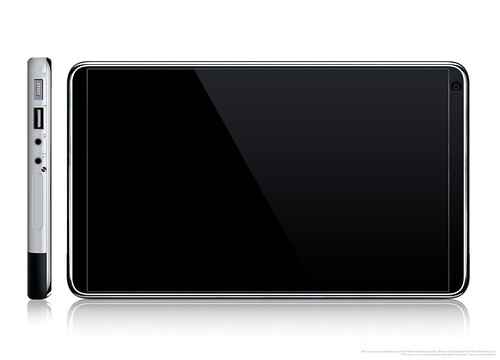
First, in a struggling economy, price is is essential to marketing a new product. At $500 for the lowest level iPad (with very little storage and no 3G), this product is placed well above comparable netbook computers.
Secondly, with a device that supposedly is revolutionizing mobile computing, it would seem that functionality would be key to Apple's strategy in such an emerging market. The idea of a tablet computer with the processing power of a netbook is a great idea and could provide a solid source of future revenue, however, most netbooks run a complete operating system (Windows 7 starter or Windows XP). The iPad simply uses the same operating system that the iPod Touch employs with a few minor modifications. Therefore, you still have difficulty in installing productivity software such as Microsoft Office, as well as browsers such as Firefox and other useful programs that may not be included in the app store. This is neither functional nor practical.
Third, there is no built-in webcam or camera device at all on the iPad. This comes standard with almost every netbook that you can purchase.
 Finally, 3G costs extra. As aforementioned, price is becoming incrasingly important to the consumer and the more that price climbs, the less valuable this device becomes. The over $150 you have to add in order to simply get 3G capability is a distinct disadvantage when compared with most cellular providers whom you can typically get a free 3G card with contract. Additionally, as an iPhone user, I already have to pay a hefty sum for the iPhone data plan and with the iPad, I will have to pay for that data again as an additional cost. This seems repetitive and rediculuous becuase with the other cell phone data providers, I can share my unlimited data with any other device via a usb cable (called tethering).
 In summary, I found the iPad to be a promising thought that was poorly executed and lacks the power of becoming a major force in mobile computing (it is essentially a bigger iPod touch). You are much better off purchasing a cheaper (and better equipped) netbook.
Thursday, January 7, 2010
Nexus One, the Next iPhone killer?
Many phones have come out which claim to be the next iPhone killer, however often fall short of this claim. Apple has cleverly carved a niche for themselves in the realm of apps, music, and portable media with the iPhone. So in this article we will take a look at Google’s new phone, the Nexus One, and see if it stacks up to all the hype. Below is a comparison chart of important features:
iPhone 3Gs | Nexus One | |
Cell Service | AT&T | T-Mobile, (Verizon coming soon) |
Touch Screen | 3.5 in. | 3.7 in. |
3.5mm Headphone Jack | Yes | Yes |
Camera | Yes | Yes |
Camera Resolution | 3 megapixel | 5 megapixel |
Camera Flash | No | Yes |
Video Record | Yes | Yes |
Speech Dictation | No | Yes |
Multimedia Messaging | Yes | Yes |
Size | 115.5 mm High x 62.1 mm wide x 12.3 mm deep | 119mm High x 59.8 mm Wide x 11.5 mm Deep |
Applications Available (approx) | 100,000 | 10,000 |
GPS Enabled | Yes | Yes |
External Microphone | Yes | Yes (Noise Cancelling) |
Price | 199.99 | 179.99 |
Downloadable Applications | Yes | Yes |
So what does all this mean? The nexus one has a number of interesting features which some iPhone users have been craving such as voice dictation (meaning you can speak into the phone and it types out your messages). This feature will go over well with those who like to text as it is much easier and removes the need for a keyboard. It also has a higher resolution camera and an LED flash. These are upgrades over the iPhone’s lackluster camera. As more and more people use camera phones as their primary way of taking pictures, this was a smart move on Google’s part. The price point also being lower than the iPhone does help as well. The points where the iPhone edge out the Nexus One are in storage (Nexus One has only 4GB while the iPhone comes with 16 or 32 GB). Note that the Nexus one can be expanded all the way up to 32 GB, but that will incur extra cost through the purchase of a micro SD card (the small storage cards you often see in digital cameras and other phones). The iPhone also has the Nexus One beat in the application department with over 10 times more applications than the iPhone. The positive to this is that people are constantly developing new applications for the Google phones and should eventually catch up to the iPhone. The final comparison is the cellular service. The iPhone is currently offered only on the AT&T network (although that will soon change), which has a spotty at best data (3G) network and a questionable cellular network which typically makes you loose signal as soon as you enter a structure such as a house or office building. While I cannot say that I am impressed with AT&T and their overpriced, underperforming network, the carrier who Google chose to launch this new phone is definitely inferior to AT&T. The Nexus One was released on the T-Mobile network who provides a weak data network and spotty cell coverage. The saving grace in this is that Google will very soon launch the phone on Verizon where it will most likely discontinue the Droid phone which they have been pushing so fervently.
The final word:
The Nexus One is superior to the iPhone physically in a number of ways, from the camera, to the voice dictation capability. Where the Nexus One falls short is in the application and software integration side which the iPhone (combined with iTunes) definitely has an edge. The other area where the Nexus One falls short is the cellular service. While AT&T by no means is the best provider out there, they definitely trump T-Mobile in both their data and cellular networks. Both of these shortcomings can be, and most likely will be, overcome by Google Developers. So, is Nexus One the next iPhone killer, or just a passing fad? The solid foundation that Google is building with this new phone definitely has the ability to rival and eventually overtake the iPhone, however only time will tell if this actually happens.
Monday, November 23, 2009
Christmas Buying Guide 2009
As Christmas draws nearer and Black Friday is only a short time away, the question on everyone’s mind is what to get for that special someone. While the items I am about to discuss focus primarily on technology, they do provide a number of interesting gifts fro any type of person.
Laptops
Gone are the days of extremely expensive portable computing, as now you can easily find laptops for around $400. A few tips to keep in mind when purchasing a new laptop:
Always consider who will be using the computer and why before you purchase.
Televisions
When it comes to televisions, the latest and greatest is OLED or LED televisions. These screen are made using LEDs or Light-Emitting Diodes. Simply put, they do not burn out, they offer better, more brilliant colors and much better contrast and resolution. The downside of these televisions is their price tag. A reasonable step down from LED TVs is the LCD television. These have dropped in price significantly over the past year and provide a crisp, clear picture even in places where there is a lot of light. Plasma TVs are another option, however they do not do well in lit areas (such as rooms with windows) and they also consume a great deal more of electricity. My pick of these different types of televisions would have to be LCD due to their reasonable price and economy.
Pulse Pen
This pen is great for anyone having to take notes (especially students) due to it’s innovative note-taking system. It has an infrared camera which takes pictures of what you are writing while simultaneously recording the lecture and indexing the two. You can then take the pen and connect it to your computer and view the notes and recording of the lecture as well as add additional notes, upload them to the web, and download these notes or recording back to the pen. It is an easy way to keep you organized and to assure that nothing is missed while you take notes. This is a great tool for any student or note taker. Cost for the professional pack is $249. See the link below for more information.
http://www.livescribe.com/
Powermat Portable Recharging Mat
This folding mat allows you to charge your plethora of electronic devices by simply laying the device on the pad, no wires, no connections. While the price tag is hefty ($99), this is definitely a must have for those who have multiple devices to charge. Make sure you check compatibility with your devices before you purchase it. See the link below for more information.
http://www.powermat.com/
Nintendo Wii
By far, possibly the best family gift is the Nintendo Wii (current price $199). Not only is it affordable on most budgets, the games are fun, interactive (literally) and great for all ages. If you are looking for some family fun time, this is definitely a good choice. Below is a link for more information.
http://www.nintendo.com/wii
Laptops
Gone are the days of extremely expensive portable computing, as now you can easily find laptops for around $400. A few tips to keep in mind when purchasing a new laptop:
- Dual Core and Windows 7- If you purchase a computer that says it has a dual core or multiple cores (think of these as additional brains, two heads is better than one), then you need to purchase the right operating system. Make sure you purchase a laptop that comes with Windows 7 x64 (64-bit edition). This edition utilizes both brains to their fullest extent, instead of using just one brain (x32 or 32-bit edition).
- Memory or RAM – This will be listed in the details, get at least 2 GB (gigabytes) of memory
- Hard Drive – Where you store audio, video, documents, etc.. Storage has become extremely cheap, so I would not settle for anything less than an 80 GB (gigabyte) hard drive.
- Screen – Bigger screen will run a premium, so make sure you are comfortable with the screen size, consider what you will be using it for when you are choosing the screen size. You may want to go bigger if you are planning on doing a lot of typing while casual browsing of the net or checking email would allow you to go smaller.
- Keyboard – test the keyboard out before you buy and once again think about how you will use the laptop. Bigger screen typically yield bigger keyboards.
- Netbooks – Netbooks are great devices that are like miniature laptops that have a number of the features of full-sized laptops. Netbooks are typically much cheaper than regular laptops, however there are some trade-offs. Netbooks are not as fast, nor can they store as much as regular laptops. These devices are great for someone who is on-the-go or for the casual computer user. Anyone planning on doing extensive work on the computer would want to go more towards a laptop. Also, netbooks are much smaller than normal laptops.
- Brand- In terms of Reliability, Apple is the best followed closely by Sony, then Toshiba. After these, there is a slight drop in quality before you reach HP. Dell has also improved their quality recently.
Always consider who will be using the computer and why before you purchase.
Televisions
When it comes to televisions, the latest and greatest is OLED or LED televisions. These screen are made using LEDs or Light-Emitting Diodes. Simply put, they do not burn out, they offer better, more brilliant colors and much better contrast and resolution. The downside of these televisions is their price tag. A reasonable step down from LED TVs is the LCD television. These have dropped in price significantly over the past year and provide a crisp, clear picture even in places where there is a lot of light. Plasma TVs are another option, however they do not do well in lit areas (such as rooms with windows) and they also consume a great deal more of electricity. My pick of these different types of televisions would have to be LCD due to their reasonable price and economy.
Pulse Pen
This pen is great for anyone having to take notes (especially students) due to it’s innovative note-taking system. It has an infrared camera which takes pictures of what you are writing while simultaneously recording the lecture and indexing the two. You can then take the pen and connect it to your computer and view the notes and recording of the lecture as well as add additional notes, upload them to the web, and download these notes or recording back to the pen. It is an easy way to keep you organized and to assure that nothing is missed while you take notes. This is a great tool for any student or note taker. Cost for the professional pack is $249. See the link below for more information.
http://www.livescribe.com/
Powermat Portable Recharging Mat
This folding mat allows you to charge your plethora of electronic devices by simply laying the device on the pad, no wires, no connections. While the price tag is hefty ($99), this is definitely a must have for those who have multiple devices to charge. Make sure you check compatibility with your devices before you purchase it. See the link below for more information.
http://www.powermat.com/
Nintendo Wii
By far, possibly the best family gift is the Nintendo Wii (current price $199). Not only is it affordable on most budgets, the games are fun, interactive (literally) and great for all ages. If you are looking for some family fun time, this is definitely a good choice. Below is a link for more information.
http://www.nintendo.com/wii
Thursday, October 15, 2009
Windows 7 Debuts
As October 22nd draws nearer, there is a great deal of anticipation for Windows fans as Microsoft will release the newest version of its operating system, Windows 7. So what is all the fuss about? Due to the fact that I am hosting a launch party for my class, I was able to obtain a copy of Windows 7 before the launch date and test it out. Below you will find a description of my experience with the new operating system.
First, I will predicate my thoughts with this: I have a great deal of experience with both Windows XP and Windows Vista and found Vista to be bulky, difficult to use, and overall a very unwieldy piece of software, as did most people who have used it. Therefore, I use Windows XP on the majority of my machines excluding a laptop I purchased which already had vista on it. My experience that I will describe is on the laptop that had Vista which I then upgraded to Windows 7.
Upgrading to Windows 7:
The upgrade process is pretty straightforward. I strongly recommend downloading the compatibility software to make sure your system is ready for the update. This option is on the screen when you first insert the DVD of Windows 7. It will then take you to their website where you download and install the compatibility tool. This tool will prompt you with any changes you might need to make. Once you have done this, make sure your laptop is plugged in and connected to the internet before you begin the upgrade. Once you click the upgrade button, it is on cruise control. It does offer a nice feature in that it allows you to keep all your files and any compatible programs once the update is complete (I still recommend backing up any important files before upgrading). The process only takes a little while and you are then introduced to the Windows 7 interface.
Windows 7, First Glance:
The most notable difference to me when first looking at the Windows 7 interface was the taskbar (seen below), which was notably larger. Also, it is less cluttered as the program icons no longer have file names, so it is easier to see what you have running. It also allows you to move the mouse over each program icon and see a thumbnail of what that program is doing. This is an enhanced feature of Vista that is very useful

While Windows 7 still keeps what is called the Aero interface (the mouse pointers and waiting symbols look like Vista), they are smoother looking and overall seem to operate more effectively. Also gone is the annoying task manger which asks you every minute if you wish to run a task or not. The desktop is also more manageable with updated gadets (clocks, calendars, etc…), bigger icons, and new ways of arranging Windows on the screen. Also included are better power management features, increased performance and easier wireless networking tools. Another cool feature are the Jump menus, which allow you easily access video, music, and files that you frequently use (see picture below).

Also included is full 64-bit support for those computers with dual core processors, it squeezes every bit of productivity out. Windows 7 also includes a new interactive them set where the backgrounds change from day to day so you don’t get bored with the same theme. Finally, my favorite feature has to be touch compatibility. There has been an amazing shift towards touch screens and touch interfaces due to their simplicity of use and Windows 7 is no exception. For those computers that have touch screens, you can now interact completely and more easily with Windows 7 than any previous operating system. I believe this is a positive step forward because of the trend that I mentioned before.
Should I Upgrade?
Windows XP Users: The upgrade is a little more difficult and your computer (if it is older) may not be able to take advantage of all the features that Windows 7 has to offer. I noticed that when I installed it on an older laptop that I lost the Aero interface and most of the new functionality features that Windows 7 offers. Because of this, I would wait until the price drops and then upgrade later.
Windows Vista Users: The cheapest upgrade version (and the one most people would need) is the Home Premium upgrade. At a cost of $119.99, one should weigh this upgrade option carefully. If you rarely use your Vista PC, then I would not upgrade just because the cost-benefit breakdown would not be substantial. If you or your student frequently use your computer (At least 2-3 times a week), then I would strongly recommend upgrading as the benefits are a far superior operating system that will remove a lot of the hassles that Windows Vista causes.
The Verdict
Windows 7 is far superior to Windows Vista in almost every way imaginable. The new operating system is smoother, lighter (meaning it takes up less space and less system resources), and more secure. The new features are a plus and the promise that devices (such as printers) will interact with it more readily than Vista is also a bonus. So, if you have the money and Vista, it is worth the upgrade.
First, I will predicate my thoughts with this: I have a great deal of experience with both Windows XP and Windows Vista and found Vista to be bulky, difficult to use, and overall a very unwieldy piece of software, as did most people who have used it. Therefore, I use Windows XP on the majority of my machines excluding a laptop I purchased which already had vista on it. My experience that I will describe is on the laptop that had Vista which I then upgraded to Windows 7.
Upgrading to Windows 7:
The upgrade process is pretty straightforward. I strongly recommend downloading the compatibility software to make sure your system is ready for the update. This option is on the screen when you first insert the DVD of Windows 7. It will then take you to their website where you download and install the compatibility tool. This tool will prompt you with any changes you might need to make. Once you have done this, make sure your laptop is plugged in and connected to the internet before you begin the upgrade. Once you click the upgrade button, it is on cruise control. It does offer a nice feature in that it allows you to keep all your files and any compatible programs once the update is complete (I still recommend backing up any important files before upgrading). The process only takes a little while and you are then introduced to the Windows 7 interface.
Windows 7, First Glance:
The most notable difference to me when first looking at the Windows 7 interface was the taskbar (seen below), which was notably larger. Also, it is less cluttered as the program icons no longer have file names, so it is easier to see what you have running. It also allows you to move the mouse over each program icon and see a thumbnail of what that program is doing. This is an enhanced feature of Vista that is very useful

While Windows 7 still keeps what is called the Aero interface (the mouse pointers and waiting symbols look like Vista), they are smoother looking and overall seem to operate more effectively. Also gone is the annoying task manger which asks you every minute if you wish to run a task or not. The desktop is also more manageable with updated gadets (clocks, calendars, etc…), bigger icons, and new ways of arranging Windows on the screen. Also included are better power management features, increased performance and easier wireless networking tools. Another cool feature are the Jump menus, which allow you easily access video, music, and files that you frequently use (see picture below).

Also included is full 64-bit support for those computers with dual core processors, it squeezes every bit of productivity out. Windows 7 also includes a new interactive them set where the backgrounds change from day to day so you don’t get bored with the same theme. Finally, my favorite feature has to be touch compatibility. There has been an amazing shift towards touch screens and touch interfaces due to their simplicity of use and Windows 7 is no exception. For those computers that have touch screens, you can now interact completely and more easily with Windows 7 than any previous operating system. I believe this is a positive step forward because of the trend that I mentioned before.
Should I Upgrade?
Windows XP Users: The upgrade is a little more difficult and your computer (if it is older) may not be able to take advantage of all the features that Windows 7 has to offer. I noticed that when I installed it on an older laptop that I lost the Aero interface and most of the new functionality features that Windows 7 offers. Because of this, I would wait until the price drops and then upgrade later.
Windows Vista Users: The cheapest upgrade version (and the one most people would need) is the Home Premium upgrade. At a cost of $119.99, one should weigh this upgrade option carefully. If you rarely use your Vista PC, then I would not upgrade just because the cost-benefit breakdown would not be substantial. If you or your student frequently use your computer (At least 2-3 times a week), then I would strongly recommend upgrading as the benefits are a far superior operating system that will remove a lot of the hassles that Windows Vista causes.
The Verdict
Windows 7 is far superior to Windows Vista in almost every way imaginable. The new operating system is smoother, lighter (meaning it takes up less space and less system resources), and more secure. The new features are a plus and the promise that devices (such as printers) will interact with it more readily than Vista is also a bonus. So, if you have the money and Vista, it is worth the upgrade.
Friday, September 25, 2009
Home Media Servers: What movie would you like to order tonight?
Home media servers to this point have lived in obscurity, but are becoming rapidly more popular with advent of faster, higher bandwidth wireless technologies as well as a storage market that has seen a decrease in size and price (you can get a 1 Terabyte Hard Drive for around $80 today). So what is a Home Media Server and what does it do? Most people tremble at the term server because it brings to mind programming and complicated operating systems with which they have no experience. However, the Home Media Server is not your average server. As the name states, it is designed for home and allows a person to watch their favorite movies, pictures, etc.. as well as listen to their music virtually anywhere in their house from one centralized location. The Home Media Server stores your movies, music, etc… on it’s hard drives and then wirelessly transmits this information to things called media extenders (which we will discuss shortly) that are then plugged into your TV. Media Extenders are devices which can accept this signal and then plug into your TV to act as a conduit for the streaming video, audio, etc… While you can buy a media extender for around $150, there are some devices that already can act as media extenders that people already own, notably the XBOX 360 and the Playstation 3 (both of which just had a price drop recently). These devices have the capability already built in to receive the Media Server’s signal and provide you with your stored audio and video. So what can you put on a home media server? You can put all of your movies you own (including high definition formats such as Blu-ray), pictures and home movies, any audio files, and even better, most servers will pull in your iTunes library for your listening pleasure. So what are the benefits of such a device?
• Never use a DVD or Blu-Ray again
• Access all your audio and video from anywhere you have a media extender
• Store your recorded TV for later access
• Listen to your iTunes or other music library anywhere
• Watch and store home movies, pictures, etc.. and view them anywhere
• Combine all your Audio/Video needs into one location
If this list isn’t reason enough to look into a Home Media Server, the prices have recently dropped on them as well. One problem some people might run into is what happens if you run out of space? Home media servers are expandable, which means you can add hard drives for more storage space as you need it.
So who makes them and where can I get one? Through my research, my favorite Home Media Server at this point is the Linksys Media Hub. I chose this one not only because of Linksys’ proven track record and the quality of their products, but it has the most features and adaptability for the price. I have included links to other products below. You can find the Linksys Media Hub at Fry’s Electronics and Best Buy or it can also be purchased online.
Linksys Media Hub
http://www.linksysbycisco.com/US/en/promo/Media-Hub
HP Media Smart
http://www.hp.com/united-states/campaigns/mediasmart-server/
• Never use a DVD or Blu-Ray again
• Access all your audio and video from anywhere you have a media extender
• Store your recorded TV for later access
• Listen to your iTunes or other music library anywhere
• Watch and store home movies, pictures, etc.. and view them anywhere
• Combine all your Audio/Video needs into one location
If this list isn’t reason enough to look into a Home Media Server, the prices have recently dropped on them as well. One problem some people might run into is what happens if you run out of space? Home media servers are expandable, which means you can add hard drives for more storage space as you need it.
So who makes them and where can I get one? Through my research, my favorite Home Media Server at this point is the Linksys Media Hub. I chose this one not only because of Linksys’ proven track record and the quality of their products, but it has the most features and adaptability for the price. I have included links to other products below. You can find the Linksys Media Hub at Fry’s Electronics and Best Buy or it can also be purchased online.
Linksys Media Hub
http://www.linksysbycisco.com/US/en/promo/Media-Hub
HP Media Smart
http://www.hp.com/united-states/campaigns/mediasmart-server/
Monday, August 24, 2009
iPods in School? A New Type of Learning Tool
As I sat watching 80’s tech on Modern Marvels (A History Channel show) I somewhat waxed nostalgic as they went through a number of the gadgets of that decade such as “The Brick” cell phone, Simon, and a number of other equally innovative devices at that time. One particular item stood out to me amongst the others, the walkman. This device started a personal music revolution in the way it made sound portable. Today, many of us use iPods, MP3 players, and the like to listen to books, music, commentary, etc… Interestingly, these devices have also found a use in the classroom.
A number of teachers have begun what is known as Podcasting their lessons and lectures for their students. Podcasting refers to the release of audio files in a chronological format through what is known as web syndication. In other words, the students can get each lesson from the internet as the teacher posts them daily, weekly, monthly, etc… and put them onto their portable digital music device (such as an iPod). This new way of distributing information to students has a number of positive benefits:
• It allows students to review notes
• Allows for greater focus or concentration in class on lecture
• Grants students the ability to catch up on missed lectures or notes
• Helps students review for tests, quizzes, etc..
• Provides are more succinct way of communication in which the teacher can thoughtfully prepare the necessary content for each lesson
While these devices were once just another electronic device which shouldn’t be brought to school and provided a mere distraction to the student, they are now capable of becoming an invaluable tool for students. Also, with the advent of devices which can also play video as well as music, many professors are beginning to do video and audio tutorials and podcasting those as well.
In the spirit of being on the bleeding edge of technology (as we always strive to be at Blessed Trinity), I will be podcasting my video and audio tutorials throughout this semester. Next month, I will provide the information as to how to obtain these tutorials as well as a review of our current progress. Thanks for reading!
A number of teachers have begun what is known as Podcasting their lessons and lectures for their students. Podcasting refers to the release of audio files in a chronological format through what is known as web syndication. In other words, the students can get each lesson from the internet as the teacher posts them daily, weekly, monthly, etc… and put them onto their portable digital music device (such as an iPod). This new way of distributing information to students has a number of positive benefits:
• It allows students to review notes
• Allows for greater focus or concentration in class on lecture
• Grants students the ability to catch up on missed lectures or notes
• Helps students review for tests, quizzes, etc..
• Provides are more succinct way of communication in which the teacher can thoughtfully prepare the necessary content for each lesson
While these devices were once just another electronic device which shouldn’t be brought to school and provided a mere distraction to the student, they are now capable of becoming an invaluable tool for students. Also, with the advent of devices which can also play video as well as music, many professors are beginning to do video and audio tutorials and podcasting those as well.
In the spirit of being on the bleeding edge of technology (as we always strive to be at Blessed Trinity), I will be podcasting my video and audio tutorials throughout this semester. Next month, I will provide the information as to how to obtain these tutorials as well as a review of our current progress. Thanks for reading!
Friday, May 15, 2009
The Laptop Revolution
If you are thinking about buying a laptop in the near future, DON’T. There are a couple of major changes that will be occurring in the computer market which will drastically change the laptop landscape.
First, there is Windows 7. I have successfully tested the Beta (pre-release) version of this replacement for Vista and I was extremely impressed. I was able to run this system on a 5-year old laptop with very little in the way of upgrades of problems. While there are a number of features that make this a great system, the most prominent is it’s touch interface. That’s right, I said touch interface. If you don’t know what that is, think iPhone or iPod touch. This new system supports many of the same features you see with touch screen phones for laptops and desktops. So what does this mean? By the time Christmas rolls around, we will see a large boost in touch screen laptops. Interaction directly with the screen instead of the mouse means a much easier and more pleasant computer experience. Next month I will discuss the benefits of these types of interfaces for college students (and they are tremendous!).
Second, a revolution in the way laptops are being made stands poised to take the laptop market by storm. A British company has developed a new way of designing processors so that the entire working of a laptop fit on a single $20 microprocessor. What this means is that we could easily see laptops which could start at $100 by Christmas. This evolution has been fueled by the rising popularity of Netbooks in recent months.
So, once again, hold onto that old laptop a few more months more and it will pay dividends. Windows 7 is for real, and tiny, cheap laptops are on the way!
Next month I will discuss the benefits of Touch Screen Laptops to your college bound student along with a brief discussion on what netbooks are and if they are right for you.
First, there is Windows 7. I have successfully tested the Beta (pre-release) version of this replacement for Vista and I was extremely impressed. I was able to run this system on a 5-year old laptop with very little in the way of upgrades of problems. While there are a number of features that make this a great system, the most prominent is it’s touch interface. That’s right, I said touch interface. If you don’t know what that is, think iPhone or iPod touch. This new system supports many of the same features you see with touch screen phones for laptops and desktops. So what does this mean? By the time Christmas rolls around, we will see a large boost in touch screen laptops. Interaction directly with the screen instead of the mouse means a much easier and more pleasant computer experience. Next month I will discuss the benefits of these types of interfaces for college students (and they are tremendous!).
Second, a revolution in the way laptops are being made stands poised to take the laptop market by storm. A British company has developed a new way of designing processors so that the entire working of a laptop fit on a single $20 microprocessor. What this means is that we could easily see laptops which could start at $100 by Christmas. This evolution has been fueled by the rising popularity of Netbooks in recent months.
So, once again, hold onto that old laptop a few more months more and it will pay dividends. Windows 7 is for real, and tiny, cheap laptops are on the way!
Next month I will discuss the benefits of Touch Screen Laptops to your college bound student along with a brief discussion on what netbooks are and if they are right for you.
Wednesday, April 15, 2009
Mac vs. PC
In speaking with my classes, there are a number of Mac people and PC people. The fact that someone could be labeled as one or the other shows the loyalty people have towards their specific brand. The irony is lost on most people that Microsoft actually owns a substantial part of Apple. So I have decided to give you a quick breakdown of which to choose if you are going to buy a computer. Apple computers are typically designed to be more user friendly and aesthetically pleasing. While companies such as HP, Toshiba, and Dell have attempted to take into account this form and function, they have not quite caught up to Apple. As far as operating systems are concerned, Apple has a very simple and typically error free operating system. It is geared more towards users who want a simple interaction with the computer and who do not mind limited control of the system and limited programs to choose from. PCs typically run windows (the most recent edition, Vista, has been a flop). This system allows more control and has a much wider variety of games and also allows for great deals of customization. As far as hardware is concerned, PCs take the edge because they are easy and cheap to upgrade or modify to suit the user. Apple computers are proprietary, which means that only specific parts will work with them (typically through an authorized vendor or Apple themselves). So all in all, if you want simplicity and reliability and price is not an option, Apple is a good choice. If you want the ability to upgrade, change, or modify your system, want a wider variety of applications, and are looking for more cost efficiency, than a PC is your best bet.
Sunday, March 15, 2009
Is Windows Vista Dead?
Hello again to another edition of unleash your geek. This week we will be discussing Windows Vista and its eminent demise at the hands of a newer operating system, Windows 7.
Since its inception, Windows Vista has suffered a number of issues and drawbacks. It has had difficulty with networking as well as printers and software conversion. Many users have complained of its new security features which seem annoying at best. There have also been a large number of bugs, patches, and fixes in the software. While some users have had positive experiences, the overwhelming majority of individuals have been negatively affected by this new system.
So why did Microsoft rush to offer a new operating system knowing it had unresolved problems and issues? There has been a general trend towards creating computers which are not only more user friendly (easier to use), but that also provide more “eye candy.” This is evidenced by the smooth fade ins and outs as well as color scheme of the new operating systems. All of this is to provide the user with an overall better and more enjoyable computer experience. Apple has managed to provide this type of operating system for a number of years in MAC OSX. This has led to a fear in lost market share by Microsoft. This fear is even further augmented by the fact that Windows XP (arguably one of the best operating systems that Microsoft has produced) is beginning to age on consumers who are always clamoring for the newest, latest technology. Therefore, in an attempt to keep up with this need, Microsoft released Vista.
While Vista does have a number of problems which could have been resolved with more careful planning and testing, it is not entirely a lost cause. The graphical part of the interface was a welcome improvement over XP and was in many ways easier to operate. This is why Windows 7 will retain a number of the features which Vista had while adding and improving on a plethora of other features which promise to make Windows 7 an amazing operating system.
What is Verdict, and What Should You Do?
I am currently testing the Beta version of Windows 7 (this version is a trial that Microsoft allows interested parties to test). My March article will deliver a list of pros and cons and whether this new operating system is worth waiting for. Right now, the safest bet is to stay with the computer you have and not to upgrade to Vista if possible. As Vista is a relatively new system Microsoft may offer a discount to users who upgrade to Windows 7 when it releases, but I wouldn’t count on it. If you must buy a new computer or laptop, try to make sure and get the ultimate or premium editions of Vista as these have the best features. Also make sure that you install the Vista service pack 1 which can be found on www.Microsoft.com. I hope to bring you good news next month of the new operating system. Until then I hope that this article has helped you in your computing decisions.
Since its inception, Windows Vista has suffered a number of issues and drawbacks. It has had difficulty with networking as well as printers and software conversion. Many users have complained of its new security features which seem annoying at best. There have also been a large number of bugs, patches, and fixes in the software. While some users have had positive experiences, the overwhelming majority of individuals have been negatively affected by this new system.
So why did Microsoft rush to offer a new operating system knowing it had unresolved problems and issues? There has been a general trend towards creating computers which are not only more user friendly (easier to use), but that also provide more “eye candy.” This is evidenced by the smooth fade ins and outs as well as color scheme of the new operating systems. All of this is to provide the user with an overall better and more enjoyable computer experience. Apple has managed to provide this type of operating system for a number of years in MAC OSX. This has led to a fear in lost market share by Microsoft. This fear is even further augmented by the fact that Windows XP (arguably one of the best operating systems that Microsoft has produced) is beginning to age on consumers who are always clamoring for the newest, latest technology. Therefore, in an attempt to keep up with this need, Microsoft released Vista.
While Vista does have a number of problems which could have been resolved with more careful planning and testing, it is not entirely a lost cause. The graphical part of the interface was a welcome improvement over XP and was in many ways easier to operate. This is why Windows 7 will retain a number of the features which Vista had while adding and improving on a plethora of other features which promise to make Windows 7 an amazing operating system.
What is Verdict, and What Should You Do?
I am currently testing the Beta version of Windows 7 (this version is a trial that Microsoft allows interested parties to test). My March article will deliver a list of pros and cons and whether this new operating system is worth waiting for. Right now, the safest bet is to stay with the computer you have and not to upgrade to Vista if possible. As Vista is a relatively new system Microsoft may offer a discount to users who upgrade to Windows 7 when it releases, but I wouldn’t count on it. If you must buy a new computer or laptop, try to make sure and get the ultimate or premium editions of Vista as these have the best features. Also make sure that you install the Vista service pack 1 which can be found on www.Microsoft.com. I hope to bring you good news next month of the new operating system. Until then I hope that this article has helped you in your computing decisions.
Thursday, December 25, 2008
Christmas Shopping Guide (Part 2)
Well once again, today we are going to be looking at shopping for those ever-important Christmas gifts and gadgets. This is part two in a series of two posts covering everything from computers to televisions and even the latest in video gaming and high definition. To read last month’s guide, check out http://unleashyourgeek.blogspot.com. So below are the topics I will cover in this second half of the buying guide for Christmas
1. What is High Definition?
High Definition is a term referring to the resolution that a television or monitor puts out on the screen. Resolution simply means the number of colored dots that can fit on the screen. Therefore, the larger the number of colored dots that can fit, the better the image quality is. High Definition is often referred to as HD.
2. So what do you need to know about HD?
What is the Best Resolution? Resolution is typically listed with vertical resolution followed by a letter, for example 1080i or 1080p. The letter represents interlaced or progressive. Interlaced means that only half the picture shows, then the other half is flashed afterwards, while progressive means that everything is on the screen at once. Progressive is better than Interlaced. It also may be followed by a number, such as 60. This is the rate at which new pictures are displayed on the screen. If it is progressive, then that is the correct number. If it is interlaced, divide the number in half and that is the actual rate that a full picture is displayed on the screen. Buy the best. Below is a list from best to worst when buying HD:
a. 1080p (Best)
b. 720p
c. 1080i
d. 720i (Worst)
So what about HDTV? (high definition television). It is Provided by most cable and satellite providers and its broadcasts are in 1080i. Different packages offer different numbers of channels at different pricing. Check with your provider for details.
In order to play high definition video, you must have a playback device. (Much like a DVD player for DVDs). Blu-Ray is now the standard in high definition, as HD-DVD is no longer being produced. These players have dropped in price significantly in recent months. Philips is a good brand of player, although there are a number of other brands out there. The Playstation 3 also has a built in Blu-Ray player.Remeber that HD-DVD is no longer available and it is very difficult to find players for them. Avoid purchasing these units or HD-DVDs (typically in a brown packaging).
3. High Definition Television Tips
i. Look for a set that is 1080p
ii. You get what you pay for, if the price seems too good to be true, it probably is
iii. Companies with lower prices typically use inferior parts, such as the backlight (which can dramatically change the picture quality)
iv. Brands such as Sony and Phillips are typically sound models as they use quality parts
v. Vizio, while cheaper, has noticeably poorer quality
4. Portable Gaming
a. There are not many new handheld gaming systems out at this time.
i. Sony PSP- Uses small discs in a plastic case for games
1. Very good graphics, can play mp3s
2. More adult-oriented games (much like the Playstation 3)
3. Wireless gaming (players within a certain distance of each other can play without having to attach units via a cord)
ii. Nintendo DS
1. DS stands for dual screen because it has two touch screens that the person can interact with
2. Games are more oriented towards young people
3. Not as good graphics as PSP, but still very good
4. Wireless gaming (players within a certain distance of each other can play without having to attach units via a cord)
5. MP3 Players
a. Apple
i. The most popular MP3 player
ii. Has a number of different variations which fall at different price points
iii. Newest is iPod touch which allows wireless downloading of music and applications
iv. Has itunes store which allows purchasing of music online at 99 cents a song
v. Not only are these the most popular, but due to your ability to use the itunes store, it makes further gifting even easier. They are typically the best bet for mp3 players
b. Others
i. Archos
1. Has a number of different mp3 players. Typically very solid products, but can be more difficult to operate, cannot use with iTunes.
ii. Zune
1. Made by Microsoft, most comparable to iPods as far as features, does not have as good a music selection online
iii. Sandisk
1. Sansa- Comes in a variety of sizes and features. Easy to operate, cannot use with iTunes
I hope this guide was helpful, please email me with further questions or concerns at bhollers@btcatholic.org.
1. What is High Definition?
High Definition is a term referring to the resolution that a television or monitor puts out on the screen. Resolution simply means the number of colored dots that can fit on the screen. Therefore, the larger the number of colored dots that can fit, the better the image quality is. High Definition is often referred to as HD.
2. So what do you need to know about HD?
What is the Best Resolution? Resolution is typically listed with vertical resolution followed by a letter, for example 1080i or 1080p. The letter represents interlaced or progressive. Interlaced means that only half the picture shows, then the other half is flashed afterwards, while progressive means that everything is on the screen at once. Progressive is better than Interlaced. It also may be followed by a number, such as 60. This is the rate at which new pictures are displayed on the screen. If it is progressive, then that is the correct number. If it is interlaced, divide the number in half and that is the actual rate that a full picture is displayed on the screen. Buy the best. Below is a list from best to worst when buying HD:
a. 1080p (Best)
b. 720p
c. 1080i
d. 720i (Worst)
So what about HDTV? (high definition television). It is Provided by most cable and satellite providers and its broadcasts are in 1080i. Different packages offer different numbers of channels at different pricing. Check with your provider for details.
In order to play high definition video, you must have a playback device. (Much like a DVD player for DVDs). Blu-Ray is now the standard in high definition, as HD-DVD is no longer being produced. These players have dropped in price significantly in recent months. Philips is a good brand of player, although there are a number of other brands out there. The Playstation 3 also has a built in Blu-Ray player.Remeber that HD-DVD is no longer available and it is very difficult to find players for them. Avoid purchasing these units or HD-DVDs (typically in a brown packaging).
3. High Definition Television Tips
i. Look for a set that is 1080p
ii. You get what you pay for, if the price seems too good to be true, it probably is
iii. Companies with lower prices typically use inferior parts, such as the backlight (which can dramatically change the picture quality)
iv. Brands such as Sony and Phillips are typically sound models as they use quality parts
v. Vizio, while cheaper, has noticeably poorer quality
4. Portable Gaming
a. There are not many new handheld gaming systems out at this time.
i. Sony PSP- Uses small discs in a plastic case for games
1. Very good graphics, can play mp3s
2. More adult-oriented games (much like the Playstation 3)
3. Wireless gaming (players within a certain distance of each other can play without having to attach units via a cord)
ii. Nintendo DS
1. DS stands for dual screen because it has two touch screens that the person can interact with
2. Games are more oriented towards young people
3. Not as good graphics as PSP, but still very good
4. Wireless gaming (players within a certain distance of each other can play without having to attach units via a cord)
5. MP3 Players
a. Apple
i. The most popular MP3 player
ii. Has a number of different variations which fall at different price points
iii. Newest is iPod touch which allows wireless downloading of music and applications
iv. Has itunes store which allows purchasing of music online at 99 cents a song
v. Not only are these the most popular, but due to your ability to use the itunes store, it makes further gifting even easier. They are typically the best bet for mp3 players
b. Others
i. Archos
1. Has a number of different mp3 players. Typically very solid products, but can be more difficult to operate, cannot use with iTunes.
ii. Zune
1. Made by Microsoft, most comparable to iPods as far as features, does not have as good a music selection online
iii. Sandisk
1. Sansa- Comes in a variety of sizes and features. Easy to operate, cannot use with iTunes
I hope this guide was helpful, please email me with further questions or concerns at bhollers@btcatholic.org.
Friday, November 14, 2008
Christmas Shopping Part 1
Hell once again, today we are going to be looking at shopping for those ever-important Christmas gifts and gadgets. This is part one in a series of two posting covering everything from computers to televisions and even the latest in video gaming and high definition.
1. Laptops
a. Name brand does mean something. Some of the better names in laptops are Toshiba, Sony, Apple, and Acer (HP is improving).
b. Shop for what you need. If you are doing home computing, and are not interested in playing games or doing graphically intense activities, then a simple Core 2 Duo processor with 2 GB of Ram should be sufficient for you.
c. Smaller and Smaller. Remember that you typically pay a premium for size, therefore, if you do not need an ultra-thin laptop, then don’t pay the premium for getting one.
d. Check the drives. Most laptops will include DVD and DVD R/RW drives. This should be expected with most laptops
e. DO NOT BUY USED. Ebay is not the place to look for laptops. Oftentimes, people will place ads for what seem like good deals, do not fall for these ads. Oftentimes, the laptops are missing major components or do not have batteries. Such items are costly and sometimes difficult to replace
f. Protect Yourself: BUY ANTIVIRUS (See http://unleashyourgeek.blogspot.com on how to choose which antivirus you want)
2. Desktops
a. Check the specs. As for laptops, only buy what you need. Standard home use requires a typically a Core 2 Duo processor with Approx. 2GB or RAM
b. See D-F in laptops as these steps are the same
c. Check the Monitor. Most Desktops come with an LCD monitor. Make sure you are getting a size that is right for you (most people are comfortable with a minimum of 19” in size)
d. Brand Smart: Once again, brands are somewhat important, however, many of the brands are somewhat equal in their abilities and technology
3. Game Consoles
a. These are always a big hit each year. There are three primary consoles which your child may be interested in, below are the pros and cons of each.
i. Nintendo Wii: An interactive console that uses two hand remotes that are wireless to interact with the games. Interaction comes through moving the controller around (such as emulating swinging a bat or rolling a bowling ball)
1. Pros: Very fun, has an increasing number of games available as well as a number of classic Nintendo games. Price is the lowest of the three consoles
2. Cons: not every game is as interactive as it could be. Also, most games for this console are geared more towards younger kids (think middle school and below). This does not mean that older kids and adults cannot have fun, as I have enjoyed playing a number of games on it. Also, graphics are not as good as other systems.
ii. Microsoft XBOX 360: The sequel system to the XBOX which has been out for over a year now
a. Pros: Very goods graphics, built-in hard drive to save games and music to (no need for memory cards). Wireless Remotes, tremendous selection of games. Backwards compatible (can play regular XBOX games). Price is lower than Playstation 3. Excellent online playing environment
b. Cons: Graphics not as good as Playstation 3, does not play high definition movies. Games geared more towards teens and adults. Popular games are typically rated M for Mature Audiences
iii. Sony Playstation 3: Third Gaming console in this long tradition of consoles. Released late last year.
a. Pros: Best graphics of all systems, built-in hard drive, wireless remotes, tremendous selection of games, backwards compatible with previous playstation games, has a built-in Blu-Ray player (a $400 value). Excellent mix of games for all ages.
b. Cons, Price is the highest of all three systems, however, the price has dropped recently.
b. It is also important to note that gamers are often very loyal to a particular system such as Playstation or XBOX. This should be taken into consideration when purchasing one system over the other.
Next Month I will have part 2 of our Christmas Buying Guide Where we will discuss:
1. What is High Definition
2. Televisions
3. Blu-Ray
4. Portable Gaming
5. MP3 Players
1. Laptops
a. Name brand does mean something. Some of the better names in laptops are Toshiba, Sony, Apple, and Acer (HP is improving).
b. Shop for what you need. If you are doing home computing, and are not interested in playing games or doing graphically intense activities, then a simple Core 2 Duo processor with 2 GB of Ram should be sufficient for you.
c. Smaller and Smaller. Remember that you typically pay a premium for size, therefore, if you do not need an ultra-thin laptop, then don’t pay the premium for getting one.
d. Check the drives. Most laptops will include DVD and DVD R/RW drives. This should be expected with most laptops
e. DO NOT BUY USED. Ebay is not the place to look for laptops. Oftentimes, people will place ads for what seem like good deals, do not fall for these ads. Oftentimes, the laptops are missing major components or do not have batteries. Such items are costly and sometimes difficult to replace
f. Protect Yourself: BUY ANTIVIRUS (See http://unleashyourgeek.blogspot.com on how to choose which antivirus you want)
2. Desktops
a. Check the specs. As for laptops, only buy what you need. Standard home use requires a typically a Core 2 Duo processor with Approx. 2GB or RAM
b. See D-F in laptops as these steps are the same
c. Check the Monitor. Most Desktops come with an LCD monitor. Make sure you are getting a size that is right for you (most people are comfortable with a minimum of 19” in size)
d. Brand Smart: Once again, brands are somewhat important, however, many of the brands are somewhat equal in their abilities and technology
3. Game Consoles
a. These are always a big hit each year. There are three primary consoles which your child may be interested in, below are the pros and cons of each.
i. Nintendo Wii: An interactive console that uses two hand remotes that are wireless to interact with the games. Interaction comes through moving the controller around (such as emulating swinging a bat or rolling a bowling ball)
1. Pros: Very fun, has an increasing number of games available as well as a number of classic Nintendo games. Price is the lowest of the three consoles
2. Cons: not every game is as interactive as it could be. Also, most games for this console are geared more towards younger kids (think middle school and below). This does not mean that older kids and adults cannot have fun, as I have enjoyed playing a number of games on it. Also, graphics are not as good as other systems.
ii. Microsoft XBOX 360: The sequel system to the XBOX which has been out for over a year now
a. Pros: Very goods graphics, built-in hard drive to save games and music to (no need for memory cards). Wireless Remotes, tremendous selection of games. Backwards compatible (can play regular XBOX games). Price is lower than Playstation 3. Excellent online playing environment
b. Cons: Graphics not as good as Playstation 3, does not play high definition movies. Games geared more towards teens and adults. Popular games are typically rated M for Mature Audiences
iii. Sony Playstation 3: Third Gaming console in this long tradition of consoles. Released late last year.
a. Pros: Best graphics of all systems, built-in hard drive, wireless remotes, tremendous selection of games, backwards compatible with previous playstation games, has a built-in Blu-Ray player (a $400 value). Excellent mix of games for all ages.
b. Cons, Price is the highest of all three systems, however, the price has dropped recently.
b. It is also important to note that gamers are often very loyal to a particular system such as Playstation or XBOX. This should be taken into consideration when purchasing one system over the other.
Next Month I will have part 2 of our Christmas Buying Guide Where we will discuss:
1. What is High Definition
2. Televisions
3. Blu-Ray
4. Portable Gaming
5. MP3 Players
Friday, September 26, 2008
Keeping Your Children Safe on the Net
One would think with Shaq roaming the cyber streets looking for predators that the Internet would be a safe haven for children, but the reality is that the Internet remains a place where children are increasingly exposed to harm. So how can you protect your child and allow them the ability to roam the net?
1. Filter the Internet
Filters have the express purpose of keeping things that we don’t want out. For example, an air filter keeps allergens, etc… out of the air. Internet filters work in the same way. They block both specific content which you as a parent can identify (such as websites you know you don’t want your child to open) as well as general content which allows you to set risk levels associated with websites in general (for example, a medium risk level would block most bad websites, but may let some through depending on the nature of the content). One of the best filters around is BSafe Online (www.bsafehome.com). I have personally used this filter at home and found it very easy to install and use. It allows you to customize the filter as described above. This is also a Christian-based company.
2. The Names have been changed to Protect the Innocent
DO NOT, I repeat DO NOT allow your child to put their real name in any profile for any website. This is an easy way for predators to find a child. Emphasize with your child that they can use their first name only or a Pen Name that their friends know. This will keep them safe without hindering their communication capabilities.
3. Make a change of Location
Ever wanted to live in California? Well now is your child’s chance to live their virtually. It is best if they do not put their location (even just the state) in a profile, however, if they insist, have them choose a state a good distance away from where you live. NEVER put specific information such as a street address, phone number, or zip code
4. Not Photo friendly
One way in which predators are able to home in on a potential victim’s location is through pictures. Your child most likely enjoys sharing pictures of them hanging out with friends, on vacation, etc…with others. While there does not seem to be anything wrong with this, often times they will wear clothing which identifies where they are. Photos of your child that have a school name or logo should be avoided. Predators can simply search for the name of the school and now they know where your child is when you are not there. Also avoid pictures that have a date/time stamp on them or a photo that has a location tag. Many cameras today tag photos with these identifiers which could also lead a predator to your child.
5. Be Big Brother
As a parent, you do not want your child to be the one completely lacking a social life, however, you must make your child understand the dangers the Internet poses to them and what they need to do to protect themselves. Have them provide you an Instant Messaging, Facebook, My Space, or other account names. This will allow you to monitor their posts and the safety of the information they put on the Internet.
6. Knowledge is Power
Remember, the more aware your student is of the dangers our there, the better equipped they will be to defend themselves. Do not be afraid to ask them questions and get responses about their online social life. Do not allow them to go unprotected, educate them.
1. Filter the Internet
Filters have the express purpose of keeping things that we don’t want out. For example, an air filter keeps allergens, etc… out of the air. Internet filters work in the same way. They block both specific content which you as a parent can identify (such as websites you know you don’t want your child to open) as well as general content which allows you to set risk levels associated with websites in general (for example, a medium risk level would block most bad websites, but may let some through depending on the nature of the content). One of the best filters around is BSafe Online (www.bsafehome.com). I have personally used this filter at home and found it very easy to install and use. It allows you to customize the filter as described above. This is also a Christian-based company.
2. The Names have been changed to Protect the Innocent
DO NOT, I repeat DO NOT allow your child to put their real name in any profile for any website. This is an easy way for predators to find a child. Emphasize with your child that they can use their first name only or a Pen Name that their friends know. This will keep them safe without hindering their communication capabilities.
3. Make a change of Location
Ever wanted to live in California? Well now is your child’s chance to live their virtually. It is best if they do not put their location (even just the state) in a profile, however, if they insist, have them choose a state a good distance away from where you live. NEVER put specific information such as a street address, phone number, or zip code
4. Not Photo friendly
One way in which predators are able to home in on a potential victim’s location is through pictures. Your child most likely enjoys sharing pictures of them hanging out with friends, on vacation, etc…with others. While there does not seem to be anything wrong with this, often times they will wear clothing which identifies where they are. Photos of your child that have a school name or logo should be avoided. Predators can simply search for the name of the school and now they know where your child is when you are not there. Also avoid pictures that have a date/time stamp on them or a photo that has a location tag. Many cameras today tag photos with these identifiers which could also lead a predator to your child.
5. Be Big Brother
As a parent, you do not want your child to be the one completely lacking a social life, however, you must make your child understand the dangers the Internet poses to them and what they need to do to protect themselves. Have them provide you an Instant Messaging, Facebook, My Space, or other account names. This will allow you to monitor their posts and the safety of the information they put on the Internet.
6. Knowledge is Power
Remember, the more aware your student is of the dangers our there, the better equipped they will be to defend themselves. Do not be afraid to ask them questions and get responses about their online social life. Do not allow them to go unprotected, educate them.
Thursday, September 18, 2008
Keep Your Computer Safe!
We have all experienced purchasing a brand new computer, hooking it up and being pleasantly surprised at how well it performs, only later to see that performance decline. Why does this always seem to be the case? A computer that once was able to perform complex tasks quickly and efficiently seems bogged down by some unknown source. The perpetrator of this lagging effect is malware. Malware is simply a term which refers to software whose intent is to harm your computer. Malware can include spyware, viruses, worms, and the like. So the next question is how does my computer become infected with this malware and what can I do to defend against it? In this case, the best defense is a good offense. While your computer may have come with a free trial of McAfee or Norton, once that subscription is up, it is time to start shopping. There are a number of free as well as paid software suites which can provide adequate protection of your PC. My personal favorite is Spy Sweeper, produced by the company Webroot (www.webroot.com). I have run this software on three different computer with a variety of connections to the Internet, each system has run flawlessly once Spy Sweeper was installed. Another great feature of this software is that it comes with free tech support, is easy to install and use, and only costs 29.95 for a 1 year subscription (At the time of writing this article, Fry’s Electronics on Windward Parkway had the software on sale for $15). My favorite free software is Spyware Terminator, produced by Crawler (www.spywareterminator.com). This package provides real-time protection and many of the features of paid software for free. While this is great software for those of us on a budget, if you can muster up the cash, I highly recommend Spy Sweeper. Regardless of whether you pay for your protection or not, it is crucial that you leave no computer exposed. Remember that a computer that is connected to the Internet (whether you browse the Internet or not) can be infected within hours of being plugged in. So protect your asset and happy surfing!
Welcome!
Welcome to the Unleash Your Geek blog, My name is Brent Hollers and I teach high school Computer Systems at a local school. I have created this blog for the express purpose of educating individuals on computers, technology, and the internet. I hope this blog meets your needs. Please email me at coachhollers@gmail.com with ideas or suggestions. Thanks for checking out the blog!
Subscribe to:
Posts (Atom)